
Chapter 8 — Writing Better Code
8.0. Good Programming Techniques
Up to this point, you’ve already encountered a lot of advice on how to write good code. Here, we’ll consolidate some of the most important points, and introduce several new ones. But why bother with any of this in the first place?
Why is good programming technique important?
Programming is different from most other intellectual activities in that the fruit of your labor reflects a simple truth: your code either works, or it doesn’t. Because of this bare truth, some believe that the only important feature of a program is that it achieve the desired result, regardless of how it does so or how it is written. And the pressure to produce code that “just works” is often high: you might have tight deadlines to ship features, or do a good job on your assignments, for example. But focusing solely on the functionality of code while neglecting its form is a recipe for disaster in the long run.
The reason for this is that the form of a program is not merely a matter of style, but substance. When writing code, there are many ways to achieve a given result. Alas, solutions to problems are not created equal: beyond merely getting the code to “work”, you may also value the efficiency, readability, maintainability, and adaptability of what you have written — if not today, then perhaps tomorrow, when you or someone else needs to revisit and maintain (or even build upon!) your code. At that point, the difference between good and bad programming practices could make the difference between a project that delights you and functions reliably, and a project that is a constant source of frustration and bugs.
To sum up, good programming techniques are not just a matter of (superficial) style, but an important set of guidelines and best practices that can save you time and make your life easier by making what you write more readable and robust. It also makes it easier for others to understand and modify your code, which opens the door for collaboration and extensions of your work.
It’s okay to bend the rules! It’s important to note that there are no strict rules of “good programming”; all we can ever have are guidelines, some of which are a matter of convention, and some of which are a matter of taste. Sometimes, a good programmer will break community guidelines if it makes the code better or more readable. For example, if you’re contributing to an existing project that uses camelCase for variables, then it makes sense to continue using camelCase in your code contributions, even if it may not be preferred by most Pythonistas.
8.1. Style and readability
PEP8: A style guide for Python
The PEP 8 style guide is a set of writing recommendations adopted by the Python community (originally written by Python’s creator, Guido van Rossum). It is not a strict set of rules, but can be helpful to follow. Many large organizations (e.g., Google) explicitly require that all code within the organization conform to PEP 8. If you want your code to automatically follow these guidelines, you can use Black, a popular code formatter for Python (I use it myself and highly recommend it). Many IDEs (e.g., VSCode, PyCharm) also have extensions/plugins that automatically format your scripts with Black whenever you wish, such as every time you save the file, so you can offload the grueling work of formatting to your computer (it won’t mind).
Naming
We covered variable and function naming in previous chapters, so here’s a quick review of some of the most important points.
- Stay consistent: Consistent naming conventions make your code more readable and maintainable. In Python,
snake_caseis typically used for variables and functions,PascalCasefor classes, andUPPER_CASEfor constants. - Use descriptive names: Use descriptive names that convey meaning. It’s okay to use long names if they help clarify your intent. E.g., don’t just use
x,y, andzfor all your variables;distance,time, andspeedare better.distance_in_miles,time_in_hours, andspeed_in_mphcan be even better, depending on the context. Consider tradeoffs between concision and clarity. As they say in the Zen of Python, “Explicit is better than implicit.” - Avoid abbreviations: Opt for full words instead of abbreviations or acronyms unless they are well-known.
- Consider scope: If you’re only using a variable within a narrow context, it’s okay to use a short name. E.g., the name
ifor loop indices is clear enough. If it’s a variable you literally do not need to use at all, then by convention you can name it_(most IDEs will even gray it out, such as infor _ in range(10): do_something()). - No hard-coding: Which of these two is more readable?
4200 / 10orDISTANCE_IN_METERS / TIME_IN_SECONDS? If you find yourself typing an immutable data value into your editor (e.g., a number, string, etc.), you should probably define aCONSTANTso that you save yourself a lot of time in the future. Odds are that you will use that value more than once throughout your program, so if you need to change it in the future it’s better to change it in one place only.
Commenting and docstrings
Comments and docstrings provide important context to your code, making it more understandable to others (and, perhaps most importantly, to your future self!). Good comments explain the “why” behind your code, not just the “what”.
Docstrings
Docstrings are string literals that appear as the first statement in a module, function, class, or method. They’re denoted by triple quotes (""") and document the purpose and behavior of Python code.
def calculate_area(radius):
    """
    Calculate the area of a circle.

    Args:
        radius (float): The radius of the circle.

    Returns:
        float: The area of the circle.
    """
    return 3.14159 * radius ** 2
Docstrings should:
- Briefly explain the purpose of some reusable block of code (e.g., function, class, module)
- Describe the parameters/arguments, including their types
- Specify the return value and its type
- Mention any exceptions that might be raised
- Provide examples of usage, if helpful
You can access a docstring using the __doc__ attribute or the help() function:
print(calculate_area.__doc__)
help(calculate_area)
Long lines and/or strings
In general, we want to avoid long lines of code. Most programming style guides tend to recommend that lines should be no wider than 80-88 characters. That’s not very wide! The most common contributor to long lines is likely long strings. To make such strings easier to read, you can use triple quotes (""") to wrap the string, and use line breaks where appropriate.
# Bad
bad_long_string = "This is a long string that is quite hard to read, requiring scrolling to the right in order to read it. \nThis is the second paragraph of the long string. \nWe need to use backslash-n in order to make new lines."

# Better
better_long_string = """
  This is a long string that would ordinarily be quite hard to read
  if it were not for the fact that we can use triple quotes to wrap it.

  This is the second paragraph of the long string.
  See how we can use line breaks to make the string easier to read?
"""
This approach, however, is a double-edged sword. Such a string, by default, will have the line breaks and indentation included in the string (here I’ve included a level of indentation in the above string to make this point salient). Often, you don’t want that indentation to be reflected in the output. There are several ways to avoid this, but perhaps the simplest is to use the dedent method from the textwrap module included in the standard library — so you don’t have to install any external dependencies to use it.
import textwrap

# dedent — meaning the opposite of indent — the string
best_long_string = textwrap.dedent(better_long_string)
Another approach would be to use implicit string concatenation. When you put parentheses around a series of strings that are not separated by any operators, Python will automatically concatenate them for you.
another_reasonable_long_string = (
    "This is a long string that would ordinarily be quite hard to read, "
    "requiring scrolling to the right in order to read it. "
    "Note that there are no line breaks in the string, "
    "No plus signs, no backslashes, no nothing. "
    "It's just a very long string that happens to be spread across multiple lines. "
    "\n\nIf you want line breaks, make sure to use backslash-n"
)
Type hints
We touched on type hints briefly in Chapter 6.4 Data Classes, but we’ll cover them in more detail here. Although Python is a dynamically typed language, optional type hints can help you catch errors and make your code more readable. Some popular packages (e.g., FastAPI) all but require type hints for your variables in function and class definitions. Type hints are denoted by a colon (:) and a type annotation after the variable name, but before the equals sign (=) in an assignment. For example, number: int = 1 is a type hint for the variable number indicating that it is an integer, and it is then assigned the value 1.
# type hinting some variables
name: str = "Stefan"
favorite_number: int = 42
test_scores: list[float] = [88.1, 92.3, 78.4, 95.2, 89.7]


# type hinting a function
# note that the return type is annotated after the `->` arrow
def calculate_area(radius: float) -> float:
    """
    Calculate the area of a circle.

    Args:
        radius (float): The radius of the circle.

    Returns:
        float: The area of the circle.
    """
    return 3.14159 * radius ** 2
They work with any built-in type in the language (e.g., int, float, str, list, dict, tuple, etc.), as well as any user-defined type (e.g., if you define a class called Person, then friend: Person is a valid type hint for the variable friend indicating that it is an instance of the Person class).
class Car:
    def __init__(self, make: str, model: str, year: int):
        self.make = make
        self.model = model
        self.year = year

# using type hints to make it extra clear that my_car is going to be an instance of the Car class
my_car: Car = Car(make="Toyota", model="Camry", year=2020)
Type hints are not enforced at runtime — the Python interpreter won’t complain if you put a string where you hinted that you would put an integer. However, they can be used by static type checkers (like the mypy package) and IDEs (like VSCode or PyCharm) to catch potential errors before your code runs. For example, if you have a function that is supposed to return a float but you mistakenly use the returned value as if it were a str, the type checker will catch the error.
Although type hints aren’t mandatory, they are a great way to make your code more readable. Even if you never share your code with another person, the most important consumer of your code will be your future self. Should you return to your own code in several months or years you will have likely forgotten all the details of what it does. But those type hints you wrote back in the day will help you reinstantiate those memories via the clear documentation of your original intent.
Enabling type checking in VS Code
You can enable type checking in VS Code by installing the Pylance extension. Then, in your settings.json file, add the following line:
"python.analysis.typeCheckingMode": "basic",Your editor will then highlight potential type errors in your code.
You can also have mypy check your code by running mypy <filename>.py in your terminal after you have installed mypy using uv add mypy. VS Code also has an installable mypy extension that will check your code for type errors, should you choose to install it.
8.2. Idiomatic Python
What is idiomatic code?
Consider the function below:
def get_squares(n):
    squares = []
    for i in range(n):
        squares.append(i**2)
    return squares
Is there anything wrong with this function? Of course not: it’s a perfectly valid and reasonable way to create a list of squares.
However, consider the following function:
def get_squares(n):
    return [i**2 for i in range(n)]
This function is more concise and readable. It leverages a unique feature of Python — namely, list comprehensions — to achieve the same result with fewer lines of code.
Writing idiomatic Python code means taking advantage of Python’s strengths to create programs that are more readable, efficient, and “Pythonic”.
Here are some commonly used idioms in Python:
1. List comprehensions
As we saw above, a common suboptimal code pattern involves creating an empty list, then appending to it in a loop. Instead, you can use a list comprehension to create and populate the list in a single line.
# Less idiomatic
squares = []
for i in range(10):
    squares.append(i**2)

# More idiomatic
squares = [i**2 for i in range(10)]
When you see this pattern — creating an empty list, then appending to it in a loop — you should immediately think about turning it into a list comprehension. To make it more clear:
# The pattern to look for
squares = [] # empty list
for i in range(10): # for loop
    squares.append(i**2) # populating the list

# The idiomatic way to do it
squares = [i**2 for i in range(10)]
# my_list = [thing_i_want for something in some_iterable if some_condition_is_met]
Of course, you can also add a condition to the list comprehension:
squares = [i**2 for i in range(10) if i % 2 == 0] # get squares of even numbers
# my_list = [thing_i_want for something in some_iterable if some_condition_is_met]
And there are other types of comprehensions, like dictionary comprehensions and set comprehensions:
squares = {i: i**2 for i in range(10)} # dictionary comprehension
squares = {i**2 for i in range(10)} # set comprehension
As well as generator expressions. These are helpful when you want to iterate over a large collection, but don’t want to create a large list in memory (this is also known as “lazy evaluation”, and we talk more about it in #9 on this list).
# generator expression — a list comprehension here would blow up your computer
squares = (i**2 for i in range(1_000_000))
2. Enumerate
When you need both the index and value in a loop (which happens more often than you might think!), use enumerate():
# Less idiomatic
for i in range(len(fruits)):
    print(f"{i}: {fruits[i]}")

# More idiomatic
for i, fruit in enumerate(fruits):
    print(f"{i}: {fruit}")
3. Zip
Use zip() to iterate over multiple lists simultaneously. This is more idiomatic than using nested loops:
names = ['Alice', 'Bob', 'Charlie']
ages = [25, 30, 35]

# Less idiomatic
for i in range(len(names)):
    print(f"{names[i]} is {ages[i]} years old")

# More idiomatic
for name, age in zip(names, ages):
    print(f"{name} is {age} years old")
4. Context managers
Use context managers (with statement) for resource management. This is more idiomatic than using try/finally blocks:
# Less idiomatic
f = open('file.txt', 'w')
try:
    f.write('Hello, World!')
finally:
    f.close()

# More idiomatic
with open('file.txt', 'w') as f:
    f.write('Hello, World!')
5. Truthiness
Leverage Python’s “truthiness” (the ability of any object to be used like a boolean value in boolean contexts, such as an if statement):
# Less idiomatic
if len(my_list) > 0:
    # do something

# More idiomatic
if my_list:
    # do something
6. Default dictionaries
Use defaultdict for dictionaries that are meant to have default values for every key (including those that don’t exist yet). This is more idiomatic than creating the keys and setting them to default values yourself:
from collections import defaultdict

# Less idiomatic
word_counts = {}
for word in words:
    if word not in word_counts:
        word_counts[word] = 0
    word_counts[word] += 1

# More idiomatic
word_counts = defaultdict(int)
for word in words:
    word_counts[word] += 1
7. String formatting
Use f-strings for string formatting (in Python 3.6+). To my eye, f-strings are more readable than the alternatives:
name = "Alice"
age = 30

# Less idiomatic
print("My name is " + name + " and I am " + str(age) + " years old.")

# More idiomatic
print("My name is {} and I am {} years old.".format(name, age))

# Most idiomatic
print(f"My name is {name} and I am {age} years old.")
You can see more advanced examples of such string formatting in Chapter 8.4. Useful Techniques.
8. Multiple assignment
Use multiple assignment for swapping variables or unpacking:
# Less idiomatic
a = 1
b = 2
temp = a
a = b
b = temp

# More idiomatic: swap directly!
a, b = b, a

# Unpacking
coordinates = (1, 2, 3)
x, y, z = coordinates
9. Generator expressions
When dealing with what could be (very) large collections, use generator expressions to save memory:
# List comprehension (creates full list in memory; heavy!)
sum([x**2 for x in range(1000000)])

# Generator expression (memory-efficient)
sum(x**2 for x in range(1000000))
10. Direct boolean returns
When writing functions that return boolean values (i.e., True or False), avoid unnecessary if-else statements that just return True or False. Instead, return the boolean expression directly, since it already evaluates to True or False!:
# Less idiomatic and redundant
def is_negative(x):
    if x < 0:
        return True
    else:
        return False

# More idiomatic and concise
def is_negative(x):
    return x < 0
This pattern applies to any boolean expression!
# Less idiomatic
def is_adult(age):
    if age >= 18:
        return True
    return False

# More idiomatic
def is_adult(age):
    return age >= 18
11. The Zen of Python
Type import this into your editor and you will be greeted with these words of wisdom:
Beautiful is better than ugly.
Explicit is better than implicit.
Simple is better than complex.
Complex is better than complicated.
Flat is better than nested.
Sparse is better than dense.
Readability counts.
Special cases aren’t special enough to break the rules.
Although practicality beats purity.
Errors should never pass silently.
Unless explicitly silenced.
In the face of ambiguity, refuse the temptation to guess.
There should be one — and preferably only one — obvious way to do it.
Although that way may not be obvious at first unless you’re Dutch.
Now is better than never.
Although never is often better than right now.
If the implementation is hard to explain, it’s a bad idea.
If the implementation is easy to explain, it may be a good idea.
Namespaces are one honking great idea — let’s do more of those!
When in doubt, follow (perhaps meditate on) these principles. It takes time to internalize these practices into your coding “muscle memory”, but the benefits are well worth it: you’ll write code that’s not only more efficient but also more readable and maintainable. Code is read much more often than it’s written, so be intentional about what you write!
8.3. Debugging
If you are writing code, you are almost certainly going to make mistakes. Even experienced programmers make mistakes — constantly. Debugging is therefore an essential art to master along the coding journey: it’s how you find and fix mistakes in your code. Python provides a few tools to help with debugging, and you’re already familiar with one of them: the print function.
Print statements
The humble print() statement is one of the most important tools for debugging. You can use it to print the values of variables at various points in your code to see what’s going wrong.
def calculate_average(numbers):
    print(f"Input: {numbers}")  # Debug print
    total = sum(numbers)
    print(f"Sum: {total}")  # Debug print
    average = total / len(numbers)
    print(f"Average: {average}")  # Debug print
    return average

result = calculate_average([1, 2, 3, 4, 5])
print(f"Result: {result}")
Python debugger (pdb)
The Python debugger (pdb) is a powerful tool for interactive debugging. It allows you to step through your code, print the values of variables, and generally inspect the state of your program.
import pdb

def complex_function(x, y):
    result = x + y
    pdb.set_trace()  # This will start the debugger
    result = result * 2
    return result

complex_function(5, 3)
When the debugger starts, you can use commands like:
n(next): Execute the next lines(step): Step into a function callc(continue): Continue execution until the next breakpointp variable_name: Print the value of a variable (e.g.p resultfor a variable namedresult)q(quit): Quit the debugger
Debugging in your IDE
Most modern IDEs, including VS Code and PyCharm, have built-in debugging tools that can help you step through your code and inspect variables. These tools are often more user-friendly and feature-rich than the built-in debugger, but can be overkill for simple debugging tasks. For example, in VS Code, you can set breakpoints by clicking to the left of the line number, and step through code, print variable values, and inspect the call stack using the debugging toolbar. Press F5 to run your program with debugging enabled, or press Ctrl+F5 to start the program without debugging.
assert yourself
Assertions are a way of not merely checking that certain conditions are met, but ensuring that those conditions are met. If an assertion fails, it raises an AssertionError.
def divide(a, b):
    assert b != 0, "Divisor cannot be zero"
    return a / b

result = divide(10, 2)  # This works fine
result = divide(10, 0)  # This will raise an AssertionError
Assertions are a good way to catch bugs early, but they are not a substitute for good error handling with try/except blocks.
Logging
For more complex applications, using the logging module can be more effective than relying solely on print statements. It allows you to output messages at different severity levels and to different outputs (e.g., console, file).
import logging

logging.basicConfig(level=logging.DEBUG)

def complex_function(x, y):
    logging.debug(f"Inputs: x={x}, y={y}")
    result = x + y
    logging.info(f"Addition result: {result}")
    result = result * 2
    logging.debug(f"Final result: {result}")
    return result

complex_function(5, 3)
PySnooper
PySnooper is a third-party library that can help you debug your code. It provides a decorator that prints the value of every variable as they change.
import pysnooper

@pysnooper.snoop()
def complex_function(x, y):
    result = x + y
    result = result * 2
    return result

complex_function(5, 3)
PySnooper will output detailed information about each line executed, including:
- The line number and content
- Local variables and their values
- Return values
- Exceptions raised
This can be particularly useful when you’re trying to understand the flow of a complex function or track down a bug that’s hard to reproduce.
To use PySnooper, you first need to install it:
uv add pysnooperYou can customize PySnooper’s output by passing arguments to the @snoop() decorator:
@pysnooper.snoop(output='debug.log', depth=2)
def complex_function(x, y):
    # ...logic goes here...
This will output the debug information to a file named ‘debug.log’ and will also show variables from one level up in the stack.
Common Debugging Strategies
- Read the error message: Python’s error messages often provide valuable information about what went wrong and where. Read them carefully!
- Reproduce the error: Make sure you can consistently reproduce the bug. A bug that moves around is harder to squash.
- Isolate the problem: Try to narrow down where the problem is occurring.
- Use binary search: If you’re not sure where the problem is, use a binary search approach by adding
printstatements or breakpoints in the middle of (what is likely to be) the offending code and then narrowing down the problematic section. You can also target by semantic “chunk” (e.g., a given function). - Check your assumptions: Make sure your assumptions about variable values, function inputs, etc., are correct.
- Rubber duck debugging: Explain your code line-by-line to an imaginary rubber duck (or a colleague). Often, the act of explaining helps you spot the issue.
Remember, debugging is as much an art as it is a science. With practice, you’ll develop intuition about where your bugs are hiding and how to root them out.
8.4 Useful techniques
This section covers various practical techniques that I hope you will find useful in your daily life. These patterns are widely used in industry contexts and can significantly improve your code quality.
Guard clauses
Imagine that you are creating a website with a user signup feature. You want to ensure that the user’s password meets a number of different criteria (e.g., it must be at least 8 characters long, contain at least one uppercase letter, at least one lowercase letter, etc.). You could write a password-checking function that looks like this:
def check_password(password):
    if len(password) < 8 or not any(char.isupper() for char in password) or not any(char.islower() for char in password):
        return False
    else:
        return True
However, the more criteria you add, the more difficult it becomes to read the code. This is where guard clauses come in.
Guard clauses are conditional statements at the beginning of a function that return early if certain conditions are not met:
def check_password(password):
    if len(password) < 8:
        return False
    if not any(char.isupper() for char in password):
        return False
    if not any(char.islower() for char in password):
        return False
    return True
Notice that we don’t need to use elif or else to handle the different cases. We can just return early if the condition is not met.
Here’s another example:
# Without guard clause
def process_positive_number(num):
    if num > 0:
        # Process the number
        result = num * 2
        return result
    else:
        return None

# With guard clause
def process_positive_number(num):
    if num <= 0:
        return None
    # Process the number
    result = num * 2
    return result
With guard clauses, you can use early returns to handle errors and edge cases, making sure that the code fails quickly, in turn helping you debug faster.
Avoiding deep nesting
Deep nesting can make code hard to read and maintain. Try to keep your code as flat as possible.
# Deeply nested
def complex_function(x):
    if x > 0:
        if x < 10:
            if x % 2 == 0:
                return "Even number between 0 and 10"
            else:
                return "Odd number between 0 and 10"
        else:
            return "Number greater than or equal to 10"
    else:
        return "Number less than or equal to 0"

# Flatter structure
def complex_function(x):
    if x <= 0:
        return "Number less than or equal to 0"
    if x >= 10:
        return "Number greater than or equal to 10"
    if x % 2 == 0:
        return "Even number between 0 and 10"
    return "Odd number between 0 and 10"
Toggling Boolean variables
Recall this snippet of a function from 3.5. An Example Program:
def start_stop(main_window, simulation_canvas, dimensions, agent_list, options):
    ...
    # check the state of the running variable, and toggle it. Since the button was pushed, we want to flip its state
    if running:
        running = False
    else:
        running = True
    ...
Rather than using an if statement to toggle boolean variables, you can use the not operator:
def start_stop(main_window, simulation_canvas, dimensions, agent_list, options):
    ...
    # check the state of the running variable, and toggle it. Since the button was pushed, we want to flip its state
    running = not running
    ...
Using walrus operator (:=)
The walrus operator (:=) allows you to assign values to variables as part of a larger expression. It can help reduce code duplication:
# Without walrus operator
data = get_data()
if data:
    process_data(data)

# With walrus operator
if data := get_data():
    process_data(data)
In practice, you will rarely use or even see the walrus operator, but it’s good to know that it exists.
Ternary operator
The ternary operator provides a concise way to write simple if-else statements:
# Long form
if x >= 0:
    y = "Positive"
else:
    y = "Negative"

# Ternary operator
y = "Positive" if x >= 0 else "Negative"
(I will admit that Python’s ternary operator is not as elegant as those in some other languages, but it can still be useful and concise.)
Advanced f-strings
Recall that we learnt about f-strings in “Chapter 1.3. Strings”. You can use them to insert variables (or other expressions) directly into strings.
Here’s a quick refresher:
name = "Alice"
greeting = f"Hello, {name}!"
print(greeting)
However, f-strings can do more than just insert variables. For example, you can use them to format numbers by using a colon (:) followed by a format specifier.
price = 19.99
formatted_price = f"The price is ${price:.2f}"
print(formatted_price)
In this example, the :.2f format specifier is used to format the price as a floating-point number with 2 decimal places. It’s easy to format numbers in various ways:
large_number = 1234567890
formatted_large_number = f"{large_number:_}" # 1_234_567_890 -- underscores are used as separators in Python
print(formatted_large_number)

# you can also do the same with commas
formatted_large_number = f"{large_number:,}"
print(formatted_large_number)

# suppose that you had a number with a lot of decimal places you don't care about
large_number_with_decimals = 1234567890.1234567890
# we can show only the first 2 decimal places with a format specifier
formatted_large_number_with_decimals = f"{large_number_with_decimals:.2f}" # 1234567890.12
print(formatted_large_number_with_decimals)
# and we can even hide the decimal places altogether, and combine with comma separators
formatted_large_number_with_decimals = f"{large_number_with_decimals:,.0f}" # 1,234,567,890 -- this actually rounds the number!
print(formatted_large_number_with_decimals)

# you can right and left-align text
text = "Hello"
left_aligned = f"{text:<10}" # "Hello     " -- 10 characters total, left-aligned
right_aligned = f"{text:>10}" # "     Hello" -- 10 characters total, right-aligned
centered = f"{text:^10}" # "  Hello  " -- 10 characters total, centered
# and you can specify what the padding character is
padded_text = f"{text:-<10}" # "Hello-----" -- 10 characters total, left-aligned, padding with dashes
padded_text = f"{text:->10}" # "------Hello" -- 10 characters total, right-aligned, padding with dashes
padded_text = f"{text:=^10}" # "====Hello====" -- 10 characters total, centered, padding with equals
You can also format dates and times:
from datetime import datetime

date = datetime.now()
formatted_date = f"{date:%Y-%m-%d %H:%M:%S}" # 2024-01-01 12:00:00
print(formatted_date)
I hope you find these techniques helpful when writing your own programs; all these techniques often come in handy.
8.5. Asking good questions
Sometimes, despite your best efforts, you will find yourself at an impasse while programming. You may be stymied by a problem for hours, days, or even weeks. What do you do when you are stuck? One option (which you should try first) is to walk away from the problem and come back to it later. Sometimes, all we need is to step away from the computer, get some fresh air, sleep on it, and let our subconscious do what our conscious mind cannot. I have had answers come to me while showering, while on long walks, while driving, and even in my dreams1. However, if you remain blocked even after you have taken a long break (or if you are extremely pressed for time), it may become necessary to seek help from others.
Answering just a few questions yourself can help you ask better questions of others. These are:
- What do you want? Describe your goal in simple terms, in as much detail as is necessary to understand what you are trying to accomplish.
- What went wrong? Describe the erroneous behavior you encountered. Include error messages and/or code snippets. (These should be in plain text, and not screenshots unless absolutely necessary.)
- What have you tried? Describe the approaches you have taken so far to solve the problem. Include relevant code snippets.
- Why do you think the error occurred? Describe your best hypothesis (or hypotheses) for what is going wrong.
- What don’t you understand? Describe the (relevant) parts of the error message or code that you do not understand.
Imagine that your friend comes to you, asking for help with their code. Which of these two versions of your friend’s question would you find more helpful?
I’m trying to run my program, but it doesn’t work. Why’s it broken?
Or:
I’m trying to write a Python function that calculates the sum of a list of numbers, but it returns
Noneinstead of the sum. Here’s my code:def sum_numbers(numbers): total = 0 for num in numbers: total += num returnWhen I call
sum_numbers([1, 2, 3, 4, 5]), it returnsNone, but I expect it to return15. Can you help me figure out what’s going wrong?
It is clear that the latter question is better, and it’s not just because it is longer. It is specific; provides context; includes relevant code (in plain text — NOT as a screenshot); describes the expected behavior; and describes the erroneous behavior actually observed. But perhaps most importantly (from a sociological perspective) it shows that the person asking the question has already put some effort into solving the problem, making helpful souls more inclined to offer assistance. The person asking the first question is asking for someone else to do the work for them. The person asking the second version of the question is seeking instruction on how to solve the problem themselves. In my experience, seeking instruction is a more effective strategy than soliciting solutions.
8.6 Decorators
So far, we’ve encountered functions that return variables (such as integers, strings, lists, and so on) or nothing at all. However, because functions are “first-class citizens” in Python, they can do much more — they can be passed as arguments to other functions, stored in variables, and even returned from other functions. This means a function can create and return another function, just like it can create and return a number or a string.
Think of it this way: if a function can create a number (like def give_me_a_five(): return 5), it can also create a function (like def make_greeting(): return lambda: "Hello"). This ability to treat functions like any other value is what makes decorators possible.
Decorators are a way to modify or enhance functions without directly changing their source code. You can think of them as “wrappers” that add extra functionality around your existing functions. They use a special @ symbol syntax that makes them easy to apply and read.
Some common uses for decorators include, but are not limited to:
- Adding logging before and after a function runs (you would have seen an example of this in 8.3 with
pysnooper) - Measuring how long a function takes to execute (as with a timer)
- Checking if a user has permission to run a function (as with an access control decorator)
- Saving (or caching) function results to make accessing those results faster next time
Basic decorator syntax
Let’s see how a decorator works by looking at a simple example:
def my_decorator(func):
    def wrapper():
        print("Something is happening before the function is called.")
        func()
        print("Something is happening after the function is called.")
    return wrapper

@my_decorator
def say_hello():
    print("Hello!")

say_hello()
When you run this code, the output will be:
Something is happening before the function is called.
Hello!
Something is happening after the function is called.
The @my_decorator syntax is equivalent to writing:
say_hello = my_decorator(say_hello)Preserving function metadata with functools.wraps
When you create a decorator, you’re actually replacing the original function with the wrapper function. This can cause some issues (especially when debugging) because the new, replaced wrapper function doesn’t carry the original function’s metadata (e.g. name, docstring). Let’s take a closer look at the problem:
def my_decorator(func):
    def wrapper(*args, **kwargs):
        """I am the wrapper function"""
        print("Something is happening before...")
        result = func(*args, **kwargs)
        print("Something is happening after...")
        return result
    return wrapper

@my_decorator
def greet(name):
    """This function greets someone by name"""
    print(f"Hello, {name}!")

print(greet.__name__)  # Prints: 'wrapper' instead of 'greet'
print(greet.__doc__)   # Prints: 'I am the wrapper function' instead of 'This function greets someone by name'
To fix this, the Python standard library provides functools.wraps, which preserves the original function’s metadata:
from functools import wraps

def my_decorator(func):
    @wraps(func)  # This preserves func's metadata
    def wrapper(*args, **kwargs):
        print("Something is happening before...")
        result = func(*args, **kwargs)
        print("Something is happening after...")
        return result
    return wrapper

@my_decorator
def greet(name):
    """This function greets someone by name"""
    print(f"Hello, {name}!")

print(greet.__name__)  # Prints: 'greet'
print(greet.__doc__)   # Prints: 'This function greets someone by name'
Using @wraps is considered a best practice when writing decorators, as it helps with debugging and makes the decorated function behave more like you’d expect.
Decorators with arguments
Decorators can also accept arguments from the functions they wrap:
def my_decorator(func):
    @wraps(func)
    def wrapper(*args, **kwargs):
        print(f"About to call {func.__name__}")
        result = func(*args, **kwargs) # call the decorated function and save the result
        print(f"Finished calling {func.__name__}")
        return result
    return wrapper

@my_decorator
def greet(name):
    print(f"Hello, {name}!")

greet("Alice")
Notice the use of *args and **kwargs in the wrapper function. This allows the decorator to work with functions that take any number of positional and/or keyword arguments. You’ll see this pattern used a lot with wrapper functions, as they are essentially a bridge between the decorator and the function it is decorating — the arguments must flow through the wrapper to get to the decorated function.
Real-world examples
These are some of the more common real-world examples I’ve come across while developing Python applications.
Timing functions
Recall how we had to time the execution of a function in Chapter 5:
import time

start_time = time.time()
result = slow_function()
end_time = time.time()
elapsed_time = end_time - start_time
Imagine the effort it would take to time every function in your code! Fortunately, we can use a decorator to make this task much simpler. Simply decorate the function with the @timer decorator when you define it, and it will print the time it took to run the function:
import time
from functools import wraps

def timer(func):
    @wraps(func)
    def wrapper(*args, **kwargs):
        start_time = time.time()
        result = func(*args, **kwargs) # evaluate the function
        end_time = time.time()
        print(f"{func.__name__} took {end_time - start_time:.2f} seconds to run")
        return result
    return wrapper

@timer
def slow_function():
    time.sleep(1)
    print("Function finished!")

slow_function() # Prints: 'slow_function took 1.00 seconds to run'
Caching results
Counting the fibonacci sequence is a classic example of a function that is well suited to caching. The naive recursive implementation is very slow for large values of n, but the cached version is extremely fast. Let’s look at the naïve (slow) version first:
def fibonacci(n):
    if n < 2:  # Base cases: fib(0) = 0, fib(1) = 1
        return n
    return fibonacci(n-1) + fibonacci(n-2)
If you try to run this function for large values of n, you’ll notice that it takes a long time to complete. This implementation is considered “naïve” because it recalculates the same values many times. For example, to calculate fibonacci(5), it will calculate fibonacci(2) three separate times! This redundant calculation makes it slower and slower the bigger the n you give it. Now, let’s try storing the results of the function for future use in a dictionary so that we don’t have to recalculate them:
from functools import wraps

def cache(func):
    stored_results = {}
    @wraps(func)
    def wrapper(*args):
        if args in stored_results:
            return stored_results[args]
        result = func(*args)
        stored_results[args] = result
        return result
    return wrapper

@cache
def fibonacci(n):
    if n < 2:
        return n
    return fibonacci(n-1) + fibonacci(n-2)
Now if we use this decorated version of the same code, it will be considerably faster.
Class decorators
Decorators are not limited to functions — they can also be used with classes:
from functools import wraps

def singleton(cls):
    instances = {}
    @wraps(cls)
    def get_instance(*args, **kwargs):
        if cls not in instances:
            instances[cls] = cls(*args, **kwargs)
        return instances[cls]

    return get_instance

@singleton
class Configuration:
    def __init__(self):
        self.settings = {}
In this case, the @singleton decorator ensures that only one instance of the Configuration class is created and shared across the program. This ensures a single source of truth for configuration settings, which can be useful in experiment and app development (among other scenarios).
Built-in decorators
The Python standard library provides several built-in decorators:
@property
Sometimes you need to compute attributes of objects on the fly, and it would be helpful to access them as attributes instead of as methods, since it can be somewhat more ergonomic:
class Circle:
    def __init__(self, radius):
        self._radius = radius # the underscore indicates to users that this is a "private" variable

    @property
    def area(self):
        return 3.14 * self._radius ** 2

circle = Circle(5)
print(circle.area)  # Accessed like an attribute, not circle.area()
@classmethod
Class methods are methods that receive the class itself as the first argument (usually named cls by convention) instead of the instance (self). They can be used to create alternative constructors or perform operations that need access to class attributes but don’t need instance-specific data. Here’s an example using a Date class that you can use to create dates from a series of arguments (year, month, day), a string, or by calling the today class method:
class Date:
    def __init__(self, year, month, day):
        self.year = year
        self.month = month
        self.day = day

    @classmethod
    def from_string(cls, date_string):
        # Alternative constructor that creates a Date from a string
        year, month, day = map(int, date_string.split('-'))
        return cls(year, month, day)

    @classmethod
    def today(cls):
        # Another alternative constructor using current date
        import datetime
        today = datetime.datetime.now()
        return cls(today.year, today.month, today.day)

# Using the class methods
date1 = Date.from_string('2024-03-20')
date2 = Date.today()
Class methods are particularly useful when you need multiple ways to create instances of your class (as above) or when you want to modify class-level attributes.
@staticmethod
Static methods are methods that don’t receive any automatic first argument. They behave just like regular functions, except for the fact that they happen to live in the class’s namespace. They’re useful when you have a method that doesn’t need access to instance or class attributes. I think of them as a way to group related functions together in a class. They could have just as easily been defined outside of a class and live as free floating functions, but grouping things in this way can be useful for readability and organization. Here’s an example using a MathOperations class that has two static methods for checking if a number is even and for calculating the factorial of a number recursively:
class MathOperations:
    @staticmethod
    def is_even(number):
        return number % 2 == 0

    @staticmethod
    def factorial(n):
        if n <= 1:
            return 1
        return n * MathOperations.factorial(n - 1)

# Using static methods (no instance needed)
print(MathOperations.is_even(4))  # True
print(MathOperations.factorial(5))  # 120
Lastly, let’s make an Example class that showcases the differences between the three types of methods:
Here’s an example showing the difference between regular methods, class methods, and static methods:
class Example:
    class_var = "I'm a class variable"

    def __init__(self):
        self.instance_var = "I'm an instance variable"

    def regular_method(self):
        print(f"Regular methods can access instance: {self.instance_var}")
        print(f"and class vars: {self.class_var}")

    @classmethod
    def class_method(cls):
        print(f"Class methods can access class vars: {cls.class_var}")
        # Can't access instance_var because there's no instance

    @staticmethod
    def static_method():
        print("Static methods can't directly access instance or class vars")
        # Could access Example.class_var, but that's not considered good practice

# Usage
ex = Example()
ex.regular_method()      # All three ways work for regular methods
Example.regular_method(ex)
Example.regular_method(Example())

Example.class_method()   # Both ways work for class methods
ex.class_method()

Example.static_method()  # Both ways work for static methods
ex.static_method()
Regular methods are by far the most common type of method in Python, and are the type you should probably use most of the time. However, you should consider using the other two types of methods when they are appropriate (e.g. using @staticmethod for utility functions that don’t need access to instance or class attributes).
Summary
Decorators are a powerful way to modify or enhance functions and classes in Python. They allow you to add functionality to existing code progressively, without needing to change what you’ve already written very much. It’s relatively unlikely that you will need to write your own decorators for this particular class, but at the very least I hope you are now a more savvy consumer of this feature.
8.7 Common Patterns
Now that we’ve covered the basics of the Python language, this section aggregates common code patterns you’ll use and encounter frequently. Think of these as ready-to-use templates that you can adapt for your specific needs. You don’t have to memorize them all or read through this section in one go — think of this more like a cheat sheet you can come back to as needed.
Anonymous functions
Lambda functions or anonymous functions (see Chapter 3.0. Functions for a refresher) provide a way to create small, single-expression functions inline. They’re particularly useful when you need a simple function as an argument to another function. Below I’ll outline some common patterns for using lambda functions.
Sorting with lambda functions
# Sort strings by length
words = ["python", "is", "awesome"]
sorted_words = sorted(words, key=lambda x: len(x))  # ['is', 'python', 'awesome']

# Sort dictionaries by a specific field
users = [
    {"name": "Alice", "age": 25, "grade": "C"},
    {"name": "Bob", "age": 30, "grade": "B"},
    {"name": "Charlie", "age": 20, "grade": "A"},
]
sorted_users = sorted(users, key=lambda x: x["age"])  # Sorts by age

# Using lambda function to extract specific fields from a dictionary
user_tuples = list(map(lambda x: (x["name"], x["age"], x["grade"]), users))

# Alternative using list comprehension (more idiomatic/Pythonic)
user_tuples = [(user["name"], user["age"], user["grade"]) for user in users]

# Result: [('Alice', 25, 'C'), ('Bob', 30, 'B'), ('Charlie', 20, 'A')]
# Sort by age first, then by grade
sorted_users = sorted(users, key=lambda x: (x["age"], x["grade"])) # for dictionaries
sorted_user_tuples = sorted(user_tuples, key=lambda name, age, grade: (age, grade)) # for tuples

# You can do the same thing with an underscore as the first argument, because we don't actually care about the name
# The underscore is a convention for indicating that the value is not used
sorted_user_tuples = sorted(user_tuples, key=lambda _, age, grade: (age, grade)) # same as the previous example

# Sort complex objects
from dataclasses import dataclass

@dataclass
class Person:
    name: str
    age: int
    grade: str


people = [
    Person("Alice", 25, "A"),
    Person("Bob", 30, "B"),
    Person("Charlie", 20, "C"),
]

# Sort by age
sorted_people = sorted(people, key=lambda x: x.age)
# Sort by multiple criteria: grade first, then by age
sorted_people = sorted(people, key=lambda x: (x.grade, x.age))
As simple transformations
Lambda functions are often used when we need to transform data from one format to another in very straightforward ways.
# Quick data conversion
to_celsius = lambda f: (f - 32) * 5/9
to_fahrenheit = lambda c: (c * 9/5) + 32

# Simple mathematical operations
square = lambda x: x**2
add = lambda x, y: x + y

# Format strings
format_name = lambda first, last: f"{last.upper()}, {first.title()}"
With default arguments
You can also use default arguments in lambda functions, just like you would with regular functions.
# Lambda with default values
greeting = lambda name, greeting="Hello": f"{greeting}, {name}!"
print(greeting("Alice"))  # "Hello, Alice!"
print(greeting("Bob", "Hi"))  # "Hi, Bob!"

# Conditional logic
get_status = lambda x: "Pass" if x >= 60 else "Fail"
Functional programming patterns
In addition to the Object-Oriented Programming paradigm (as via classes), Python supports several functional programming patterns via built-in functions like map(), filter(), and reduce(). While list comprehensions are often preferred in Python, these patterns are still useful to know.
Transforming data with map()
The map() function is useful when you need to apply a function to each item in a collection. Think of it as a very concise version of a for loop. It says, “For each item in the collection, apply the function to it and return the result”.
# Convert temperatures from Celsius to Fahrenheit
celsius = [0, 10, 20, 30]
# we cast the result to a list because map returns an iterator
fahrenheit = list(map(lambda c: (c * 9/5) + 32, celsius))

# Format strings in a list — make everything title case
names = ["alice", "bob", "charlie"]
formatted = list(map(lambda x: x.title(), names)) # "Alice", "Bob", "Charlie"
Filtering data with filter()
The filter() function is useful when you need to filter items in a collection based on a condition. It says, “For each item in the collection, get me the items that match the condition and return them in a new collection”.
# Filter out negative numbers
numbers = [-2, -1, 0, 1, 2]
positives = list(filter(lambda x: x > 0, numbers)) # [1, 2]

# Filter dictionaries by condition
items = [
    {"name": "apple", "price": 0.50},
    {"name": "banana", "price": 0.25},
    {"name": "cherry", "price": 1.00},
]
affordable_items = list(filter(lambda x: x["price"] < 0.75, items))
# gives us: [{"name": "apple", "price": 0.50}, {"name": "banana", "price": 0.25}]
Combining with reduce()
The reduce() function from the functools module is used to process a sequence or collection and build a single result by applying a function to pairs of elements. It works by:
- Taking the first two items from the sequence
- Applying the function to them to get an intermediate result
- Taking that result and the next item from the sequence
- Repeating until all items are processed
Here’s an example of how reduce works with multiplication, multiplying all the numbers in a list together:
from functools import reduce

numbers = [1, 2, 3, 4]
# Get the product of all numbers in the list using `reduce`
# reduce(lambda x, y: x * y, numbers) works like this:
# Step 1: 1 * 2 = 2
# Step 2: 2 * 3 = 6
# Step 3: 6 * 4 = 24
product = reduce(lambda x, y: x * y, numbers)  # Result: 24

# You can also provide an initial value as a third argument
product = reduce(lambda x, y: x * y, numbers, 10)  # Starts with 10, result: 240
While Python has several built-in functions that can be used to reduce collections in specific ways (e.g. sum(), join(), etc.), reduce() is a more general purpose method that can be used to reduce any collection. You will see it used from time to time.
from functools import reduce

# Sum all numbers in a list (though the sum() built-in is preferred)
total = reduce(lambda x, y: x + y, [1, 2, 3, 4])  # 10

# Join strings with a separator (though the join() built-in is preferred)
words = ["hello", "world", "in", "python"]
sentence = reduce(lambda x, y: x + " " + y, words)  # "hello world in python"

# Find maximum value in a list of dictionaries (though max() built-in is preferred)
transactions = [
    {"amount": 100},
    {"amount": 200},
    {"amount": 150},
]
max_transaction = reduce(lambda x, y: x if x["amount"] > y["amount"] else y, transactions)
# Returns: {"amount": 200}
Counting and aggregating
Often, you’ll need to count things: how many times does a particular item appear in a list, how many unique items are in a list, how many times does an event occur, etc. There are many ways to do so:
Counting items
from collections import Counter

# Count occurrences in a list
words = ["apple", "banana", "apple", "cherry"]
word_counts = Counter(words)  # Counter({'apple': 2, 'banana': 1, 'cherry': 1})

# Count with a dictionary
counts = {}
for item in items:
    counts[item] = counts.get(item, 0) + 1

# Using defaultdict
from collections import defaultdict
counts = defaultdict(int)
for item in items:
    counts[item] += 1
Finding the most (or least) common items
word_counts = Counter(words)
# Get the 3 most common words and their counts
three_most_common_words = word_counts.most_common(3)

# Get the least common word and its count
# Notice how we still use the most_common method, but we choose the last item
# which is now the least common one
least_common_word = word_counts.most_common()[-1]
Finding the biggest and smallest items
In dictionaries
# Convert Counter to a dictionary
counts = dict(word_counts)

# Find the key associated with the maximum value in a dictionary
word_with_most_occurrences = max(counts, key=counts.get)

# Find the key associated with the minimum value in a dictionary
word_with_least_occurrences = min(counts, key=counts.get)
In lists
# Find the smallest value in a list
numbers = [1, 2, 3, 4, 5]
smallest_number = min(numbers)

# Find the largest value in a list
largest_number = max(numbers)

# Find the index of the smallest value in a list
smallest_number_index = numbers.index(smallest_number)

# Find the index of the largest value in a list
largest_number_index = numbers.index(largest_number)
In tuples
Suppose that you have a list of tuples, where each tuple contains something and a number. You can use the min and max functions to find the smallest and largest items, respectively.
items = [("apple", 1), ("banana", 2), ("cherry", 3)]
smallest_item = min(items, key=lambda item: item[1])
largest_item = max(items, key=lambda item: item[1])

# You can also use tuple unpacking if you prefer, since this is a little more readable
smallest_item = min(items, key=lambda name, count: count)
largest_item = max(items, key=lambda name, count: count)
In objects
class Car:
    def __init__(self, brand, model, year, mileage=None):
        self.brand = brand
        self.model = model
        self.year = year
        self.mileage = mileage or 0 # initialize odometer to 0 if no mileage is provided

    def drive(self, miles):
        self.mileage += miles

    def __str__(self):
        return f"{self.brand} {self.model} ({self.year}): Driven {self.mileage} miles"

cars = [
    Car("Toyota", "Corolla", 2020, 10000),
    Car("Ford", "Mustang", 2021, 5000),
    Car("Chevrolet", "Camaro", 2022, 2000),
]

# Find the car with the most miles
car_with_most_miles = max(cars, key=lambda x: x.mileage)

# Find the car with the least miles
car_with_least_miles = min(cars, key=lambda x: x.mileage)
Working with collections
Collections are fundamental to Python programming, and there are several common operations you might need to perform on them. I regularly use the following patterns.
Zipping and unzipping
# Basic zipping of two lists
names = ["Alice", "Bob", "Charlie"]
ages = [20, 25, 30]
people = list(zip(names, ages))  # [("Alice", 20), ("Bob", 25), ("Charlie", 30)]

# Unzipping (destructuring)
# there is no unzip function, but you can reverse the process with the * operator
names_back, ages_back = zip(*people)  # Converts back to separate lists!

# Zipping with different length lists (stops at shortest)
a = [1, 2, 3]
b = ["a", "b"]  # shorter list
zipped = list(zip(a, b))  # [(1, "a"), (2, "b")]

# Enumerate when you need both index and value
# Enumerate can be thought of as zipping a range object of the same length as the
# collection you pass to it.
for i, name in enumerate(names):
    print(f"{i}: {name}")  # "0: Alice", "1: Bob", etc.

# this is the same as:
for i, name in zip(range(len(names)), names):
    print(f"{i}: {name}")  # "0: Alice", "1: Bob", etc.

# Enumerate with start index (the default is 0)
for i, name in enumerate(names, start=1):
    print(f"{i}: {name}")  # "1: Alice", "2: Bob", etc.
Reversing lists
# Reverse a list in place
numbers = [1, 2, 3, 4, 5]
numbers.reverse()  # Original list is modified -- no need to assign to a new variable

# Create a reversed copy
original = [1, 2, 3, 4, 5]
reversed_copy = original[::-1]  # New reversed list -- note the use of the slice operator

# Using reversed() function (returns an iterator, not a list itself)
for num in reversed(numbers):
    print(num)

# Reverse a string
text = "Hello"
reversed_text = text[::-1]  # "olleH" -- note the use of the slice operator
Combining and splitting collections
# Concatenating lists
list1 = [1, 2, 3]
list2 = [4, 5, 6]
combined = list1 + list2  # [1, 2, 3, 4, 5, 6]

# alternatively, you can achieve the same result by
# unpacking the lists with the * operator
combined = [*list1, *list2]  # [1, 2, 3, 4, 5, 6]

# Extending a list
list1.extend(list2)  # Modifies list1 in place to also have the elements of list2
# no need to assign to a new variable!
# list1 is now [1, 2, 3, 4, 5, 6]

# Splitting lists
items = [1, 2, 3, 4, 5, 6]
middle = len(items) // 2 # note the use of integer division -- two slashes!
first_half = items[:middle]
second_half = items[middle:]

# Chunking a list into fixed-size pieces with a custom function
# We can use itertools to help us do this -- don't worry if this is cryptic!
from itertools import islice

def chunk_list(lst, chunk_size):
    iterator = iter(lst) # create an iterator from the list
    return list(iter(lambda: list(islice(iterator, chunk_size)), []))

numbers = [1, 2, 3, 4, 5, 6, 7]
chunk_size = 3
chunks = chunk_list(numbers, chunk_size)  # [[1, 2, 3], [4, 5, 6], [7]]

# Alternative one-liner using itertools only -- even more cryptic!
from itertools import islice, chain
chunk_size = 3
chunks = list(zip(*[iter(numbers)] * chunk_size))  # Only works when len(numbers) is divisible by chunk_size
Finding common elements
# Intersection of two lists (no duplicates)
list1 = [1, 2, 2, 3, 4]
list2 = [2, 4, 5, 6]
common = list(set(list1) & set(list2))  # [2, 4]

# Union of two lists (no duplicates)
all_unique = list(set(list1) | set(list2))  # [1, 2, 3, 4, 5, 6]

# Difference between lists (elements in first but not in second; no duplicates)
difference = list(set(list1) - set(list2))  # [1, 3]

# Symmetric difference (elements in either but not both; no duplicates)
symmetric_difference = list(set(list1) ^ set(list2))  # [1, 3, 5, 6]
Grouping elements
from itertools import groupby
from operator import itemgetter

# Group consecutive elements
numbers = [1, 1, 1, 2, 2, 3, 4, 4, 4]
for key, group in groupby(numbers):
    print(f"{key}: {list(group)}")  # "1: [1, 1, 1]", "2: [2, 2]", etc.

# Group items by a key
items = [
    ("A", 1), ("A", 2), ("B", 1), ("B", 2),
]
# Sort first - groupby() only groups consecutive elements
items.sort(key=itemgetter(0))
for key, group in groupby(items, key=itemgetter(0)):
    print(f"{key}: {list(group)}")  # "A: [('A', 1), ('A', 2)]", etc.
Chain and combine iterables
from itertools import chain, combinations, permutations

# Chain multiple iterables together
list1 = [1, 2]
list2 = [3, 4]
list3 = [5, 6]
chained = list(chain(list1, list2, list3))  # [1, 2, 3, 4, 5, 6]

# Generate all possible combinations
items = ["A", "B", "C"]
# Get all 2-item combinations
pairs = list(combinations(items, 2))  # [("A", "B"), ("A", "C"), ("B", "C")]

# Generate all possible permutations
items = ["A", "B", "C"]
permutations = list(permutations(items))
# [("A", "B", "C"), ("A", "C", "B"), ("B", "A", "C"), ("B", "C", "A"), ("C", "A", "B"), ("C", "B", "A")]
Working with classes
Classes are at the heart of object-oriented programming, so it’s important to get comfortable with them. Here are some helpful ways to work with classes.
Essential dunder methods
By dunder methods, we mean methods that start and end with double underscores. They are also sometimes called “magic methods”.
Let’s look at an example of a class that represents a book. We will use some of the dunder methods to make the class behave in a few different ways.
class Book:
    def __init__(self, title: str, author: str, pages: int):
        """Initialize the book"""
        self.title = title
        self.author = author
        self.pages = pages
        self._current_page = 0  # "private" attributes are prefaced with an underscore
        # they aren't really private, but we use this convention to indicate to other developers
        # that these attributes are internal to the class and should not be accessed directly

    # String representation for debugging -- used by repr()
    def __repr__(self):
        return f"Book(title='{self.title}', author='{self.author}', pages={self.pages})"

    # String representation for users -- used by print() and str()
    def __str__(self):
        return f"{self.title} by {self.author}"

    # Make it possible to compare two books
    def __eq__(self, other: "Book"):
        if not isinstance(other, Book):
            return NotImplemented
        return (
            self.title == other.title and
            self.author == other.author
        )

    # there are also __lt__ (<), __le__ (<=), __gt__ (>), and __ge__ (>=) methods,
    # which make it possible to compare methods of a class, but they wouldn't make
    # much sense for a book class.

    # Make the object hashable (for use in sets/dicts)
    def __hash__(self):
        return hash((self.title, self.author))

    # Get the length of the book (used by len())
    def __len__(self):
        return self.pages

    # Make the object iterable (used by for loops and other functions that iterate over collections)
    def __iter__(self):
        self._current_page = 0
        return self

    # Get the next item in the iterable (used by for loops and other functions that iterate over collections)
    def __next__(self):
        if self._current_page >= self.pages:
            raise StopIteration
        self._current_page += 1
        return f"Page {self._current_page}"

# Usage example:
book = Book("Python Patterns", "John Doe", 200)
print(repr(book))  # Book(title='Python Patterns', author='John Doe', pages=200)
print(str(book))   # Python Patterns by John Doe
print(len(book))   # 200

# Iteration example
for page in book:
    print(page)    # Prints "Page 1", "Page 2", etc.
Property decorators and validation
Sometimes, in your classes, you want to give the user a simplified interface for getting and setting properties, while keeping them (nominally) private and allowing the user to avoid common errors. For example, in a Temperature class, you might want to ensure that a temperature value is always a number, and that the number is above absolute zero. Property decorators come to the rescue in these cases.
class Temperature:
    def __init__(self, celsius=0):
        self._celsius = celsius
        # note the use of a private attribute, prefaced with an underscore

    # Getter -- gets the value of the attribute
    @property
    def celsius(self):
        return self._celsius

    # Setter with validation -- sets the value of the attribute safely
    @celsius.setter
    def celsius(self, value):
        # check if the value is either an int or a float
        if not isinstance(value, (int, float)):
            raise TypeError("Temperature must be a number")

        # check if the value is above absolute zero
        if value < -273.15:  # Absolute zero
            raise ValueError("Temperature below absolute zero!")

        # set the attribute
        self._celsius = value

    # Computed property -- derived from the attribute on the fly
    @property
    def fahrenheit(self):
        # convert the celsius value to fahrenheit
        return (self.celsius * 9/5) + 32

    # Setter for the computed property -- sets the value of the attribute safely
    @fahrenheit.setter
    def fahrenheit(self, value):
        # convert the fahrenheit value to celsius
        self.celsius = (value - 32) * 5/9

# Usage:
temp = Temperature(25)
print(temp.celsius)     # 25
print(temp.fahrenheit)  # 77.0

temp.celsius = 30
print(temp.fahrenheit)  # 86.0

temp.fahrenheit = 68
print(temp.celsius)     # 20.0

# These will raise errors:
# temp.celsius = "hot"  # TypeError
# temp.celsius = -300   # ValueError
Creating objects from dictionaries
When working with data files or API responses, you often encounter dictionaries where the keys match the attributes of a class. You can easily create objects from these dictionaries using the ** operator to unpack the dictionary. This provides a series of key-value pairs that will be passed to the __init__ method of the class.
A simple example
Suppose you have a Person class and a dictionary with keys that match the attributes of this class:
class Person:
    def __init__(self, name, age, email):
        self.name = name
        self.age = age
        self.email = email

# Dictionary with matching keys
person_data = {
    "name": "Alice",
    "age": 30,
    "email": "alice@example.com"
}

# Create a Person object using dictionary unpacking
person = Person(**person_data)
# same as saying:
# person = Person(name=person_data["name"], age=person_data["age"], email=person_data["email"])

print(person.name)  # Alice
print(person.age)   # 30
print(person.email) # alice@example.com
Handling extra and/or missing keys
If the dictionary contains extra keys that do not match the class attributes, you can filter them out using a dictionary comprehension:
# Filter dictionary to match class attributes
attrs = ["name", "age", "email"]
filtered_data = {k: person_data[k] for k in attrs if k in person_data}
person = Person(**filtered_data)
If the dictionary is missing some keys, you can provide default values in the class constructor, or while getting the value from the dictionary (as with .get()) or handle all this with a try-except block.
Using dataclasses
If you are using Python 3.7 or later (which we are in this course), you can simplify this process with dataclasses, which automatically generate the __init__ method for you:
from dataclasses import dataclass

@dataclass
class Person:
    name: str
    age: int
    email: str

# Create a Person object directly from the dictionary
person = Person(**person_data)
And you can get the attributes of the dataclass with its __annotations__ attribute:
print(Person.__annotations__) # {'name': <class 'str'>, 'age': <class 'int'>, 'email': <class 'str'>}Which would allow you to filter the dictionary before passing it to the Person constructor:
attrs = Person.__annotations__
filtered_data = {k: person_data[k] for k in attrs if k in person_data}
person = Person(**filtered_data)
This approach is particularly useful when you need to convert structured data into objects (instances of a class) for further manipulation.
Context managers
Context managers are used to manage resources, such as opening and closing a file or a database connection. Often you will see them used with the with statement, which ensures that the resource is properly closed after its block finishes, even if an exception is raised at some point. If we open a resource without eventually closing it, our computer will eventually run out of memory and crash. Rather than having to rely on our faulty human memory to remember to close the resource, we can use a context manager to ensure that the resource is properly closed.
class DatabaseConnection:
    def __init__(self, host, port):
        self.host = host
        self.port = port
        self.connected = False

    def __enter__(self):
        # Set up the connection
        print(f"Connecting to {self.host}:{self.port}")
        self.connected = True
        return self

    def __exit__(self, exc_type, exc_val, exc_tb):
        # Clean up the connection
        print("Closing connection")
        self.connected = False
        # Return True to suppress any exceptions, False to propagate them
        return False

    def query(self, sql):
        if not self.connected:
            raise RuntimeError("Not connected!")
        print(f"Executing: {sql}")

# Usage with context manager:
with DatabaseConnection("localhost", 5432) as db: # 5432 is the default port for PostgreSQL, a common open-source database
    db.query("SELECT * FROM users")

# Connection is automatically closed after the with block!
Working with files
We often need to read and write files in our programs. For example, we might need to read a configuration file, or load in data via a CSV file or a text file. Here are some common ways to work with files.
Reading files
# Read entire file — note the use of a context manager (the `with` statement)
# This ensures that the file is properly closed after its block finishes, even if an exception is raised at some point
with open("file.txt", "r") as f:
    content = f.read()

# Read line by line
with open("file.txt", "r") as f:
    for line in f:
        line = line.strip()  # Remove trailing newlines and whitespace characters
        # Logic for processing line goes here

# Read CSV files
import csv
with open("data.csv", "r") as f:
    reader = csv.reader(f)
    for row in reader:
        # Logic for processing row goes here
Writing files
# Write lines to a file
lines = ["line 1", "line 2", "line 3"]
with open("output.txt", "w") as f:
    for line in lines:
        f.write(f"{line}\n")

# Write CSV files
with open("output.csv", "w", newline="") as f:
    writer = csv.writer(f)
    writer.writerows(data)
Finding files
The glob module provides a way to find files using pattern matching. This is particularly useful when you need to process multiple files that follow a certain naming pattern.
from glob import glob
import os

# Find all Python files in current directory
python_files = glob("*.py")

# Find all files in a specific directory
files_in_data = glob("data/*")

# Find files recursively (including subdirectories)
all_csv_files = glob("**/*.csv", recursive=True)

# Find files with multiple extensions
data_files = glob("data/*.{csv,txt,xlsx}", recursive=True)

# Combine with os.path for more control
for file_path in glob("data/*.csv"):
    filename = os.path.basename(file_path)  # Get just the filename
    directory = os.path.dirname(file_path)  # Get just the directory path

    # Process each file
    with open(file_path, "r") as f:
        content = f.read()
        # ... process content ...

# We will learn more about pandas in Chapter 14; come back here when you have read that chapter
# Common pattern: process all matching files
import pandas as pd

# Read and combine all CSV files in a directory
all_dataframes = []
for file_path in glob("data/*.csv"):
    df = pd.read_csv(file_path)
    all_dataframes.append(df)

# Combine all dataframes into a single dataframe
combined_data = pd.concat(all_dataframes)
glob uses Unix shell-style wildcards:
*matches any number of characters (except leading dots)?matches any single character[seq]matches any character in the sequence. For example:[abc]matches “a”, “b”, or “c”[0-9]matches any digitdata[123].txtmatches “data1.txt”, “data2.txt”, or “data3.txt”
[!seq]matches any character NOT in the sequence. For example:[!abc]matches any character except “a”, “b”, or “c”[!0-9]matches any non-digitdata[!123].txtmatches “data4.txt” or “data5.txt”, but not “data1.txt”
Working with file paths
The pathlib module provides an object-oriented interface to filesystem paths. It’s more powerful and easier to use than the older os.path module.
from pathlib import Path

# Create path objects
current_dir = Path.cwd()  # Get current working directory
home_dir = Path.home()    # Get your home directory
data_dir = Path("data")   # An example relative path -- this points to the data directory in the current working directory
abs_path = Path("/absolute/path/to/file.txt")  # An example absolute path -- this points to a file at a specific location on your computer

# Joining paths (notice no need for os.path.join or dealing with backslashes vs. forward slashes)
config_file = home_dir / ".config" / "app" / "config.yml"
data_file = data_dir / "experiment_1" / "results.csv"

# Path components
filename = data_file.name          # "results.csv"
stem = data_file.stem             # "results"
extension = data_file.suffix      # ".csv"
parent_dir = data_file.parent     # Path("data/experiment_1")

# Check path properties
exists = data_file.exists()       # Does the file exist?
is_file = data_file.is_file()    # Is it a regular file?
is_dir = data_dir.is_dir()       # Is it a directory?

# Create directories
data_dir.mkdir(exist_ok=True)             # Create single directory -- if it already exists, do nothing
data_dir.mkdir(parents=True, exist_ok=True)  # Create parent directories too -- if they already exist, do nothing

# List directory contents
python_files = list(current_dir.glob("*.py"))     # List Python files in the current directory
all_text_files = list(current_dir.rglob("*.txt"))      # Recursively list all .txt files in the current directory and all subdirectories

# Common operations
for path in data_dir.iterdir():  # Iterate over directory contents
    if path.suffix == ".txt":    # Check file extension
        # Read text file
        content = path.read_text()
        # Write text file
        path.write_text("new content")
        # Get file size
        size = path.stat().st_size

# Real-world example: organize files by extension
def organize_files(directory):
    directory = Path(directory)
    # Create directories for each extension
    for file_path in directory.iterdir():
        if file_path.is_file():
            # Get the extension (convert to lowercase for consistency)
            ext = file_path.suffix.lower()
            if ext:  # Only process files with extensions
                # Create directory for this extension
                ext_dir = directory / ext[1:]  # Remove the dot from extension to name the directory
                ext_dir.mkdir(exist_ok=True)
                # Move file to appropriate directory
                file_path.rename(ext_dir / file_path.name)

# Example usage:
# organize_files("downloads")  # Organizes files in downloads directory by extension!
The pathlib module makes it much easier to work with file paths compared to the older os.path approach, so I recommend using it instead. It makes it especially easy to combine paths, to work with parts of paths, and has cross-platform consistency (so you don’t have to worry about backslashes vs forward slashes in Windows vs. Mac/Linux).
Data transformation
Much of the job of a researcher is to transform some messy data into a more usable format. Rarely are the data you need already pre-processed for you. As such, getting comfortable with data transformation is a crucial skill. You may find yourself relying on these operations frequently.
Filtering lists
# Filter with list comprehension
numbers = [1, 2, 3, 4, 5, 6]
evens = [x for x in numbers if x % 2 == 0]

# Filter with built-in filter function
evens = list(filter(lambda x: x % 2 == 0, numbers))
Transforming data
# Transform and filter in one step
numbers = [1, 2, 3, 4, 5]
squared_evens = [x**2 for x in numbers if x % 2 == 0]

# Transform dictionary values
prices = {"apple": 0.5, "banana": 0.25}
doubled_prices = {k: v * 2 for k, v in prices.items()}
Working with nested data
Data is often nested (meaning that you have a dictionary or list that contains another dictionary or list, and so on, potentially to a great depth), and you may need to access or transform nested data — I do this all the time, and these are some of the ways I do it.
Safely accessing nested dictionaries
# Using get() with default values
data = {"user": {"name": "John", "age": 30}}
name = data.get("user", {}).get("name", "Unknown")
# we do this to avoid a KeyError, which would occur
# if we tried to access data["user"]["name"] directly if the key is not present

# Or we could use a try-except block (but this is less readable)
try:
    name = data["user"]["name"]
except KeyError:
    name = "Unknown"
Flattening nested lists
Sometimes you may need to flatten a list of lists into a single list. You can do this with a list comprehension or with the itertools module.
# Flatten a list of lists
nested = [[1, 2], [3, 4], [5, 6]]
flattened = [item for sublist in nested for item in sublist] # [1, 2, 3, 4, 5, 6]

# Flatten with itertools
import itertools
flattened = list(itertools.chain.from_iterable(nested)) # [1, 2, 3, 4, 5, 6]
Error handling
Errors are a fact of life in programming. You can’t always predict when they’ll occur, but you can prepare for them, and handle them gracefully with try-except blocks. Review Chapter 2.10. Try and Except if any of this is unfamiliar.
Graceful error handling
It’s not a good idea to catch all exceptions with a bare except clause. Instead, specify the exceptions you expect to handle, and catch the rest with a more general except clause that also logs the error.
# Handle multiple exceptions
try:
    value = int(user_input)
    result = 100 / value
except ValueError:
    print("Please enter a valid number")
except ZeroDivisionError:
    print("Cannot divide by zero")
except Exception as e:
    print(f"An unexpected error occurred: {e}")
Working with dates and times
Dates and times are a fact of life in many scientific and engineering applications. Within my own work in psychology, I have to deal with when participants completed my tasks, their reaction times when making responses, and so on. May you find these examples helpful.
Date manipulation
from datetime import datetime, timedelta

# Get current date/time
now = datetime.now()

# Add/subtract time
tomorrow = now + timedelta(days=1)
last_week = now - timedelta(weeks=1)

# Format dates
formatted = now.strftime("%Y-%m-%d %H:%M:%S")
These patterns represent common solutions to several frequently encountered programming tasks. While there are often multiple ways to solve a problem, these are well-worn patterns, providing tested, readable approaches that you can build upon.
Dealing with randomness
Whether you’re creating random data, choosing random samples, or shuffling data, scientists find themselves needing to harness the power of randomness regularly.
Basic random operations
import random

# Generate a random float between 0 and 1
random_float = random.random()

# Generate random integer in range (inclusive)
dice_roll = random.randint(1, 6)

# Choose from a range with step size
even_number = random.randrange(0, 101, 2)  # Random even number 0-100

# Random choice from sequence
colors = ["red", "green", "blue"]
chosen_color = random.choice(colors) # pick one of the colors at random

# Multiple random choices (with replacement)
samples = random.choices(colors, k=5)  # Can pick the same color multiple times

# Multiple random choices (without replacement)
unique_samples = random.sample(colors, k=2)  # Each color can only be picked once
Shuffling data
# Shuffle a list in place
cards = ["A", "2", "3", "4", "5"]
random.shuffle(cards)  # Original list is modified in-place -- no need to assign to a new variable

# Create a shuffled copy without modifying original
original = [1, 2, 3, 4, 5]
shuffled = random.sample(original, k=len(original))
Setting random seeds
When you need reproducible random results (e.g., for scientific experiments or testing):
# Set seed for reproducibility
random.seed(42)  # Any integer works as seed
result1 = random.random()
result2 = random.random()

# Using the same seed later will produce the same sequence
random.seed(42)
assert result1 == random.random()  # True
assert result2 == random.random()  # True
Working with probability distributions
For more sophisticated random number generation, use NumPy’s random module.
import numpy as np

# Normal (Gaussian) distribution
gaussian_values = np.random.normal(loc=0, scale=1, size=1000)  # mean=0, std=1

# Uniform distribution
uniform_values = np.random.uniform(low=0, high=10, size=100)

# Random integers with custom probabilities
outcomes = [1, 2, 3]
probabilities = [0.2, 0.5, 0.3]  # Must sum to 1
weighted_choice = np.random.choice(outcomes, p=probabilities)
Random sampling in pandas
We’ll encounter pandas in Chapter 14. Data Analysis and DataFrames but for now, here are some examples of how its convenient sampling methods can be used.
import pandas as pd

df = pd.DataFrame({"A": range(1, 101)})

# Random sample of n rows
sample_n = df.sample(n=10)  # Get 10 random rows

# Random sample by percentage
sample_frac = df.sample(frac=0.1)  # Get 10% of rows

# Stratified sampling
stratified = df.groupby("category").sample(n=5)  # 5 samples from each category
8.8. Common Pitfalls
Even experienced programmers make mistakes! Here are some common pitfalls to watch out for, along with ways to avoid them.
Note that, like 8.7 before it, this is section is designed more like a cheat sheet than as a comprehensive guide to every possible pitfall you might encounter. Feel free to skim it, and come back to it as needed. I will update this section as I encounter more common “gotchas” within the language.
Naming conflicts
One of the most insidious bugs you can create is a naming conflict. This happens when you give something (like a file or variable) the same name as something else that’s already defined in Python.
Local files vs. library names
Imagine that you are working on a project that uses the random module. However, in your project folder, you inadvertently create a file named random.py and put some code in it.
# You create a file named random.py somewhere in your project
# Inside of your random.py file, you have a function that returns the number 42
def get_number():
    return 42

# Now, in another file somewhere in your project, you try to use the random module
import random
# This will fail! Python finds your local random.py instead of the standard library random module!

random_number = random.randint(1, 10)  # AttributeError: module 'random' has no attribute 'randint'
To avoid this, don’t name your files the same as Python standard library modules or popular third-party packages. Some common ones to avoid:
random.pymath.pytest.pyjson.pydatetime.pytkinter.pyrequests.pynumpy.pypandas.pyscipy.pymatplotlib.pyseaborn.pysklearn.py
Variable shadowing
Python comes with a lot of built-in functions and variables. If you try to use a variable name that’s already defined in Python, it will shadow (aka overwrite) the built-in function or variable, making it inaccessible. (Also see the section on variable scoping below for more on this issue.)
# Built-in function shadowing
list = [1, 2, 3]  # Oops! Now 'list' refers to your variable, not the list constructor!
new_list = list([4, 5, 6])  # TypeError: 'list' object is not callable

# Function parameter shadowing
def process_data(data, filter):
    # Oops! 'filter' now refers to the parameter, not the built-in filter() function
    filtered = filter(lambda x: x > 0, data)  # TypeError: 'list' object is not callable
Mutable default arguments
This is a classic Python pitfall many beginners fall prey to; it’s quite insidious. When you use a mutable object (like a list or dictionary) as a default argument, it’s created once (and only once!) when the function is defined — it does not create it anew each time the function is called. In a sane world, it would be created anew each time the function is called, but alas, this is the world we live in.
Instead of using a mutable object as a default argument, you should use None as the default and create the object inside the function after checking if it’s None.
# Bad: The same list is shared between all function calls!
def add_item(item, items=[]):
    items.append(item)
    return items

print(add_item(1))  # [1]
print(add_item(2))  # [1, 2] -- Oops! The list is accumulating items

# Good: Use None as the default and create the list inside the function
def add_item(item, items=None):
    if items is None:
        items = []
    items.append(item)
    return items

print(add_item(1))  # [1]
print(add_item(2))  # [2] -- Good! The list is created anew each time the function is called
Indentation errors
Python uses indentation (four spaces, or a tab) to define blocks of code. Inconsistent indentation can lead to subtle bugs or syntax errors.
def process_data(data):
    if data:
        result = []
        for item in data:
           result.append(item * 2)  # Notice the different indentation (3 spaces instead of 8)
        return result  # This might look right but can cause issues
    return None

# Use consistent indentation (preferably 4 spaces per level)
def process_data(data):
    if data:
        result = []
        for item in data:
            result.append(item * 2)  # Consistent 4-space indentation
        return result
    return None
Even more insidious are logical indentation errors, where the code is syntactically correct but does something different than you expect, leading to semantic errors.
# This code has a bug! Can you spot it?
def calculate_totals(items):
    total = 0
    for item in items:
        if item > 0:
            total += item
            print(f"Added {item} to total")
        return total  # Oops! This is indented at the wrong level

# The return statement is *inside* the if block, so the function
# returns after processing just one positive item!

# Here's the corrected version:
def calculate_totals(items):
    total = 0
    for item in items:
        if item > 0:
            total += item
            print(f"Added {item} to total")
    return total  # Now properly indented outside the loop, so all items are processed

# Try them both:
items = [1, 2, -3, 4]
print(calculate_totals(items))  # First version returns 1
                                # Second version returns 7 (1 + 2 + 4)
These logical indentation errors can be particularly tricky because the code runs without syntax errors — it just doesn’t do what you expect! Always check your indentation carefully when debugging unexpected behavior.
Missing punctuation
I cannot count the number of times that I or others have written code that is “logically” correct, but fails either syntactically or semantically because of a missing punctuation mark. Most of the time, you (or your editor) can easily catch syntax errors like these:
# This code will fail because of a missing colon
if x > 0
    print("x is positive")
But what about something more pernicious, like a missing comma in a list?
# This code will produce an unexpected result because of a missing comma
names = [
    "John",
    "Jane",
    "Jim",
    "Jill"
    "Jake"
]
print(names)  # ['John', 'Jane', 'Jim', 'JillJake']
Because Python has implicit string concatenation (when two strings side by side without a comma or plus sign between them become concatenated), the code above will actually run just fine. However, it will only produce a list of 4 names, not 5. This is a subtle semantic bug that can be hard to spot. Remain vigilant in your use of punctuation!
Circular imports
When two modules import each other, it creates a circular import that can lead to confusing errors.
# file1.py
from file2 import function2

def function1():
    return function2()

# file2.py
from file1 import function1  # Oops! This creates a circular import!

def function2():
    return function1()
To fix this, you should:
- Restructure your code to avoid the circular dependency. This is the best solution! For example:
- Move the shared functionality to a third module that both files can import
- Combine the related functionality into a single module (perhaps a single class)
- Rethink the design from first principles to eliminate the circular relationship
- If restructuring isn’t possible, move the import inside the function where it’s needed:
# file1.py
def function1():
    from file2 import function2  # Import inside the function
    return function2()

# file2.py
def function2():
    from file1 import function1  # Import inside the function
    return function1()
While this works, it’s not ideal because (a) it makes the dependencies less obvious, (b) it can make your code slower (imports are executed each time the function is called), and (c) it’s harder to understand what modules your code depends on.
The best solution is almost always to restructure your code to eliminate the circular dependency entirely.
Shallow vs. deep copying
Python variables hold references to objects, not the objects themselves. This can lead to unexpected behavior with mutable objects. For example, if you copy a list, the copy is a reference to the original list, and does not create a brand new list with copies of all the items inside. When dealing with such mutable objects, you can use the copy module to create a “deep copy” (with copy.deepcopy()) that creates a brand new list with copies of all the items inside.
# List copying pitfall
original = [1, 2, [3, 4]]
copy = original.copy()  # Creates a shallow copy

copy[2][0] = 'three'
print(original[2][0])  # Oops — prints 'three'! The nested list is still referenced

# Use deep copy for nested structures
from copy import deepcopy
copy = deepcopy(original)
copy[2][0] = 'three'
print(copy[2][0])  # 'three'
print(original[2][0])  # Still 3, as expected
String concatenation in loops
Recall that strings are immutable. This means they cannot be changed. If you try to build complex strings by concatenation in a loop, you’ll create a new string object in each iteration, which is highly inefficient. Instead, you should use a list to collect the strings and then join them at the end.
# Bad: Creates a new string object in each iteration — slow and memory-intensive
result = ""
for i in range(1000):
    result += str(i)

# Good: Use join() or list comprehension
result = "".join(str(i) for i in range(1000))
Scoping issues
Consider the following code:
def my_function():
    x = 10
    print(x)

print(x)  # Oops! NameError: name 'x' is not defined
For beginners, this can be confusing because it seems like x should be accessible everywhere. You defined it, already, right? But in Python, the scope of a variable is limited to the block in which it is defined. In this case, x is defined inside of my_function(), so it is not accessible outside of that function. If, however, it had been defined outside of the function, in the main body of the file, it would have been in the global scope and thus accessible everywhere. Consider the following example, where we have two variables with the same name: a global variable x and a local variable x inside of a function:
x = 10 # this is a global variable

def my_function():
    x = 20  # this is a local variable
    print(x)

my_function()  # prints 20 -- the local x
print(x)  # prints 10 -- the global x
This is why you should be careful about using the same variable name for different purposes in different scopes! It can lead to behavior that you might not anticipate.
There are four possible scopes for a variable, and when you access a variable with a given name, Python will use the variable with the innermost scope. The scopes are commonly reffered to by the acronym LEGB:
- Local scope: The variable is defined inside of the current function.
- Enclosing scope: The variable is defined inside of any parent functions.
- Global scope: The variable is defined outside of any functions, in the main body of the file.
- Built-in scope: The variable is defined in the built-in functions and variables (e.g.,
print,len,range, etc.).
Python will always use the first variable it finds with the given name, starting from the innermost scope and working its way outwards.
Global variables
At your peril, you can manually break these scoping rules by using special keywords. One such (dangerous) keyword is global.
# Bad: Global variable
counter = 0

def increment_counter():
    global counter  # This explicitly tells Python to use the counter variable in the global scope
    counter += 1
    return counter

counter = increment_counter()


# Better: Pass the value as a parameter
counter = 0

def increment_counter(value):
    return value + 1

counter = increment_counter(counter)
I would strongly recommend against using global variables (or nonlocal ones for that matter, too). Instead, I recommend passing variables as arguments to functions, and returning any modified value from the function. Global variables often seem attractive to novices — believe me, I put them everywhere in the beginning — but they are a source of nigh endless headaches due to the difficulty of reasoning about their behavior.
In-place mutations vs. new values
Sometimes you will need an object to be modified. For example, perhaps you have a string like "1" that you need to convert to an integer. You can do this by using the int() function, but be warned: this will return a new integer object, and not modify the original string.
x = "1"
x = int(x)
print(x)  # 1 -- an integer
Sometimes, students will try to use the int() function as if it were an in-place mutation, which it is not.
x = "1"
int(x) # Oops! We forgot to assign the result to a variable!
print(x)  # "1" -- still a string!
In other cases, the opposite is true: the function you want to use modifies the object in place, and returns None when you try to assign the result to a variable.
my_list = [1, 2, 3]
my_list = my_list.append(4) # Oops! `.append()` modifies the list in place, and returns `None`!
print(my_list)  # Oops! Now it prints `None`!
# Instead we should have used: my_list.append(4) -- no need to assign the result to a variable!


# This type of mistake is common when sorting lists:
my_list = [3, 1, 2]
my_list = my_list.sort() # Oops! `.sort()` modifies in place and returns `None`!
print(my_list)  # `None`!

# However, if you use `sorted()` it will return a new list, without modifying the original:
my_list = [3, 1, 2]
new_list = sorted(my_list) # `new_list` is `[1, 2, 3]`, and `my_list` is still `[3, 1, 2]`
print(new_list)  # `[1, 2, 3]`
print(my_list)  # `[3, 1, 2]`

# Of course, it's possible to get this wrong as well, in the opposite way:
my_list = [3, 1, 2]
sorted(my_list) # Oops! `sorted()` returns a new list, but we don't assign it to a variable!
print(my_list)  # `[3, 1, 2]` -- still unsorted!
It’s not possible to know in advance whether a function will modify the object in place or return a new object. While there are general heuristics (e.g., list methods mutate in-place, functions return new values) the only way to know for sure is to read the documentation for the function, which you can do in VS Code by hovering over the function name and reading the tooltip, or pressing Ctrl + Left Click to open the documentation in a new tab. When in doubt, you can also search online for the documentation for the function.
Failing to close files
Forgetting to close files can lead to resource leaks! To get around this, you can use a context manager, which handles the proper behavior for entering and exiting the block.
# Bad: File might not get closed if an error occurs
f = open('data.txt', 'r')
data = f.read()
f.close()

# Good: Use a context manager
with open('data.txt', 'r') as f:
    data = f.read()
# File is automatically closed after the with block!
Return statement misuse
One of the most common mistakes beginners make involves the return statement - either using it incorrectly or forgetting to use it entirely.
Forgetting to return values
When a function doesn’t explicitly return anything, it implicitly returns None. This can lead to unexpected behavior:
def add_numbers(a, b):
    result = a + b
    # Oops! Forgot to return result

sum = add_numbers(5, 3)
print(sum)  # Prints None, not 8!

# Fixed version:
def add_numbers(a, b):
    result = a + b
    return result  # Now it returns the actual sum

result = add_numbers(5, 3) # puts 8 into the result variable
print(result)  # Prints 8 in the terminal, as expected
Remember that every function in Python returns a value! If you don’t explicitly return a value, the function will return None. The humble print statement is a function, too, and it returns None. Unfortunately, people often try to save the result of print in a variable, when in fact they want to use the value they put inside of print instead.
def greet():
    greeting = print("Hello, world!") # oops! We are not putting the string into the greeting variable!
    return greeting # this is None!

result = greet()  # Prints "Hello, world!" to the terminal, but puts `None` into the result variable
print(result)  # shows nothing in the terminal here — but because we saw "Hello, world!" in the terminal before, we may be confused!
Using return outside functions
Another common mistake is trying to use return statements outside of the body of a function. Recall that return statements are used to return a value from a function. If you try to use a return statement outside of a function, you will get a SyntaxError.
# script.py
x = 5 + 3
return x  # SyntaxError: 'return' outside function

# Correct way - wrap it in a function:
def calculate():
    x = 5 + 3
    return x

# If you want to run this code when the script is executed directly:
if __name__ == "__main__":
    result = calculate()
    print(result)
This error sometimes occurs in combination with the logical indentation errors mentioned above!
# This code has a bug! Can you spot it?
def calculate_totals(items):
    total = 0
    for item in items:
        if item > 0:
            total += item
            print(f"Added {item} to total")
return total  # Oops! This is indented at the wrong level -- in this case, it's outside the function!

# This will yield a SyntaxError!

# Here's the corrected version:
def calculate_totals(items):
    total = 0
    for item in items:
        if item > 0:
            total += item
            print(f"Added {item} to total")
    return total  # Now properly indented within the function, but after the loop, so all items are processed
The if __name__ == "__main__": statement is crucial here because it helps distinguish between:
- When your file is being run directly as a script (e.g., if you have a
script.pyfile and run it viapython script.pyfrom your terminal) - When your file is being imported as a module by another file (e.g., if you have a
helper.pyfile and runimport helperfrom within another file)
Without this statement, any code at the module level (outside functions) will run immediately when the file is imported, which can lead to unexpected behavior. Let’s look at an example where this matters.
# within your helper.py file
def useful_function():
    return "I'm helpful!"

print("This will run when helper.py is imported!")  # Probably not what we want

# within your main.py file
import helper  # Oops! The print statement in helper.py runs immediately!
# This might not be what we intended...


# Here's a better version of helper.py:
def useful_function():
    return "I'm helpful!"

if __name__ == "__main__":
    # This only runs if helper.py is run directly
    print("Running helper.py as a script")
    print(useful_function())
Remember: If you need code to run when your file is executed directly (but not when it’s imported), put that code inside the if __name__ == "__main__": block.
Scripts that do nothing
Often, I see students write scripts that just define a number of functions without calling them. If you do not call or invoke the functions, nothing will happen.
# Bad: This code will do nothing when it is run
# This is the whole file.
def main():
    # your code goes here

# there is no output when you run this script!
To avoid this pitfall, start a new script by writing a function called main() which will contain the primary logic of the program, and then call that function from the if __name__ == "__main__": block. Otherwise, if you just define some functions but don’t call them, nothing will happen when you run the script!
# Better: write the main function and then call it within the if __name__ == "__main__": block
def main():
    # your code goes here

# This will now run the main function when you run the script
if __name__ == "__main__":
    main()
File path issues
File paths can be a major source of confusion and bugs, especially when sharing code between different computers or operating systems. Here are some common pitfalls to watch out for:
Absolute and relative paths
Avoid the use of absolute paths because they only work on your specific machine. This is a problem when you share your code with others, or when you run it on a different machine (or one with a different operating system).
# Bad: This will only work on your machine!
data = open("C:/Users/stefan/Documents/data.txt", "r")

# Bad: This will break on Windows!
data = open("/home/stefan/data.txt", "r")
Instead, use relative paths, which are relative to the current working directory (where you run the script from), not where the script file is located. This can lead to confusion:
# Let's say you have this structure:
# project/
#   ├── data/
#   │   └── input.txt
#   └── scripts/
#       └── process.py

# Inside process.py:
with open("data/input.txt", "r") as f:  # Beware!
    data = f.read()
As written, this code will only work if you run the script from the project/ directory:
cd project
python scripts/process.py
It will fail if you run it from anywhere else, including the scripts/ directory:
cd project/scripts
python process.py  # FileNotFoundError: No such file or directory: 'data/input.txt'
Solutions
- Use
os.path.join()for cross-platform compatibility:
import os

# This works on both Windows and Unix-like systems
path = os.path.join("data", "input.txt")
with open(path, "r") as f:
data = f.read()- Use
pathlib(modern approach):
from pathlib import Path

# This works on both Windows and Unix-like systems
path = Path("data") / "input.txt"
with open(path, "r") as f:
data = f.read()- If you need to reference files relative to the script’s location (not the working directory), use
__file__:
import os
from pathlib import Path

# Get the directory containing the script
script_dir = Path(__file__).parent

# Now this will work regardless of where you run the script from
data_path = script_dir / "data" / "input.txt"
with open(data_path, "r") as f:
    data = f.read()
Remember: When sharing code, always use relative paths and make sure to document the expected directory structure. If you need to use absolute paths for testing, be sure to define that information in your environment variables or configuration files such that they can be easily modified by other users. (But never, ever commit your secret information files [e.g., .env] to version control!)
Attitude issues
It might seem strange to include a section on “attitude” in a list of common programming pitfalls, but your mindset can significantly impact your learning journey and problem-solving abilities.
One common hurdle, especially for beginners, is the tendency to “fight” the computer. You might be utterly convinced that your logic is flawless and the machine is somehow mistaken or being difficult. Remember: the computer only ever does exactly what you tell it to do. If the output is unexpected, it’s almost certainly because your instructions (the code) don’t quite match your intentions.
Instead of frustration, try to approach these situations with humility and a spirit of cooperation and learning. View the computer not as an adversary, but as a very literal-minded partner that’s giving you precise feedback on your instructions. When something goes wrong, it’s an opportunity to learn more deeply about how the language works or how your logic needs refinement. Adopting this perspective will make debugging less stressful and ultimately help you become a more effective programmer.
Conclusion
Remember, these pitfalls are common enough that most Python developers (including myself!) have encountered them at some point. You probably will, too! The key is not to try to avoid every possible mistake, because that’s impossible and counter-productive. I expect that you will actually learn more slowly if you try to be too defensive. Instead, we strive to learn from our mistakes to develop good habits that help us avoid them in the future.
8.9. Common Pitfalls in IT
Whereas the previous section was focused on common pitfalls in coding in Python, this section is focused on common pitfalls involving the broader computing environment around your code: your terminal, editor, project folder, Python interpreter, file extensions, and so on.
Many student problems that look like Python problems are actually not Python problems at all. Often, the code is fine, but the computer is looking in the wrong folder, using the wrong Python, hiding an important file, or running the wrong environment.
Like the section before it, this section is meant to function more like a cheat sheet than a comprehensive guide. Skim it now, and return to it whenever your setup starts behaving in unexpected ways.
Wrong working directory in the terminal
One of the most common mistakes students make is running commands from the wrong folder. Recall from Chapter 0 that your terminal always has a current working directory. When you run a command, that command acts relative to whatever folder the terminal is currently in.
This can cause problems like:
pythoncannot find the file you are trying to runuv addinstalls into the wrong projectuv runcannot find yourpyproject.toml- file paths that “should work” suddenly raise
FileNotFoundError
Before doing much else, check where you are by running the following commands in order in your terminal:
pwd  # print working directory
ls  # list files and directories
If you are not in the correct project folder, change into it with cd (change directory):
cd path/to/your/project  # change directory to the path to your project
# make sure to replace the placeholder with the actual path to your actual project
If you are not sure whether you are in the correct folder, look for familiar project files like:
pyproject.toml.python-version.gitignore- your Python scripts
- data folders such as
data/,images/, orresults/
If you cannot see any of the “hidden” folders like .venv, .git, or .gitignore, you may need to show them by either configuring your file manager (Finder on Mac, File Explorer on Windows) to show hidden files, or by running the following command in your terminal:
ls -la # list all files and directories, including hidden ones (long format)When something “mysteriously” goes missing, your first question should usually be: “What folder is my terminal actually in right now?”
Wrong folder open in VS Code
Even if your terminal is in the right place, your editor (e.g., VS Code) itself may be opened in the wrong folder. This can cause many confusing behaviors. For example, the Explorer sidebar may not show the files you expected; the integrated terminal may complain about files not being found when you press the big “Play” button to get your code to run; the Python interpreter selector may show the wrong environment; and dotfiles like .python-version or .venv may seem to be missing.
In most cases, you can employ a simple fix: qopen the project folder itself, rather than a parent folder, child folder, or a single file from somewhere else. In VS Code, you can do this by clicking the “Open Folder” button in the Explorer sidebar and selecting the root folder of your project.
Despite my warnings about the “Play” button, many students still use it to run their code. This is a bad habit to get into, as it can lead to many confusing errors. It obfuscates the complexity of running your code in the terminal, and it can lead to many subtle bugs that are hard to debug. Instead, run your code directly from the terminal, in the appropriate folder, using uv run python my_script.py (or python my_script.py if you have your environment activated correctly).
Wrong environment activated
Another very common issue is that students install packages into one environment, but run Python from a different environment.
This usually produces errors such as:
ModuleNotFoundError: No module named 'package_that_should_be_there'- the code runs in one terminal window but not another
- VS Code says a package is missing even though you already installed it
This can usually be solved by answering two closely related questions:
- Which Python is your terminal using?
- Which Python is VS Code using?
Those are not always the same.
One helpful diagnostic is to ask Python to identify itself:
python --version
python -c "import sys; print(sys.executable)"
If you are using uv, it is often even safer to run Python through uv:
uv run python --version
uv run python -c "import sys; print(sys.executable)"
Your system may, for one reason or another, have more than one Python interpreter installed. Maybe your system came with Python 3.12 installed by default, but then you also manually installed Python 3.13 directly from the Python website, then later installed uv and are now using that to manage your project. Taking these steps to interrogate which Python you are using will help keep you sane.
In VS Code, also make sure that the selected Python interpreter points to the environment for the current project, often something inside .venv if you are using uv to manage your project.
Mismatch between pyproject.toml and .python-version
Your project may specify a Python version in more than one place. Two common ones are:
pyproject.toml.python-version
If those two disagree, strange things can happen:
- one tool tries to use one version of Python (e.g., 3.12) while another tool uses another version (e.g., 3.13)
- VS Code selects one interpreter but
uvprefers to use another - your environment may need to be recreated because the version constraints changed
Check whether these files all agree with one another. Make sure that your .python-version file says the same version of Python as your pyproject.toml file.
If you recently changed the version, you may also need to rebuild or resync the environment so that your tooling catches up with the new configuration. This is often as simple as running uv sync. If that still doesn’t work, delete the .venv folder and run uv venv again (from the correct folder, which is the root folder of your project containing your pyproject.toml file).
Incorrect or missing file extensions
Operating systems sometimes hide file extensions, which leads students to accidentally create files with names like:
Python script file(with no extension at all)notes.md.txt(with two competing extensions)notes.py(when they meantnotes.md)
This creates chaos, as your files will not run or render as expected. Always verify the full filename, including the extension.
For this course, common extensions include:
.pyfor Python scripts.mdfor Markdown files.txtfor plain text.csvfor comma-separated data.jsonfor JSON files
If your file manager hides extensions, turn them on whenever possible. In Mac’s Finder, you can do this by taking the following steps:
- Open a new Finder window
- In the top left corner of the whole screen, click on “Finder” -> “Settings” (or press Cmd + ,)
- Select the “Advanced” tab in the window that pops up
- Click the box labeled “Show all filename extensions” and make sure it is checked
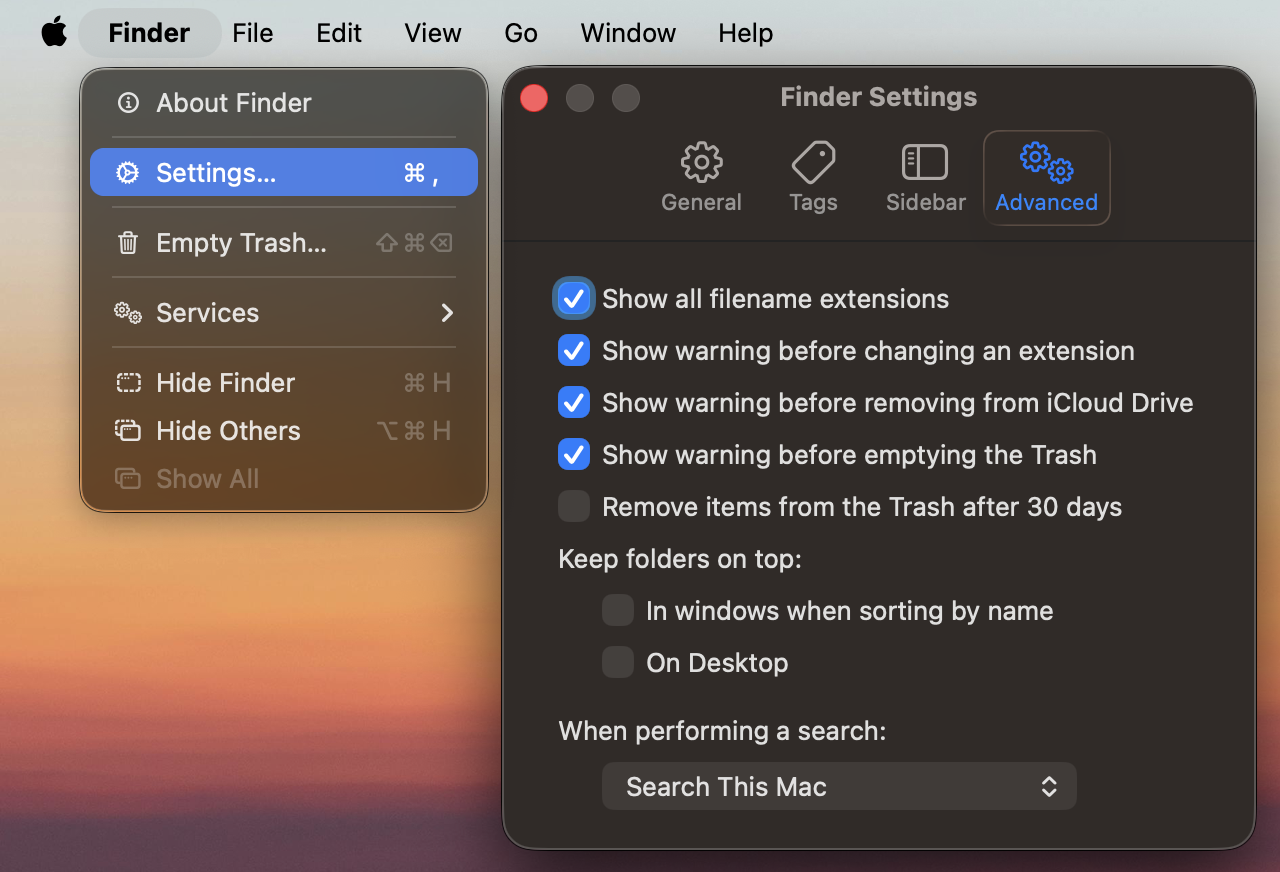
In Windows File Explorer, you can do this by taking the following steps:
- Open a new File Explorer window
- In the ribbon towards the top of the window, click on “View”
- Hover your mouse over “Show”
- Make sure the “File name extensions” option is checked
- While you’re there, make sure the “Hidden items” option is also checked (a la the previous section)
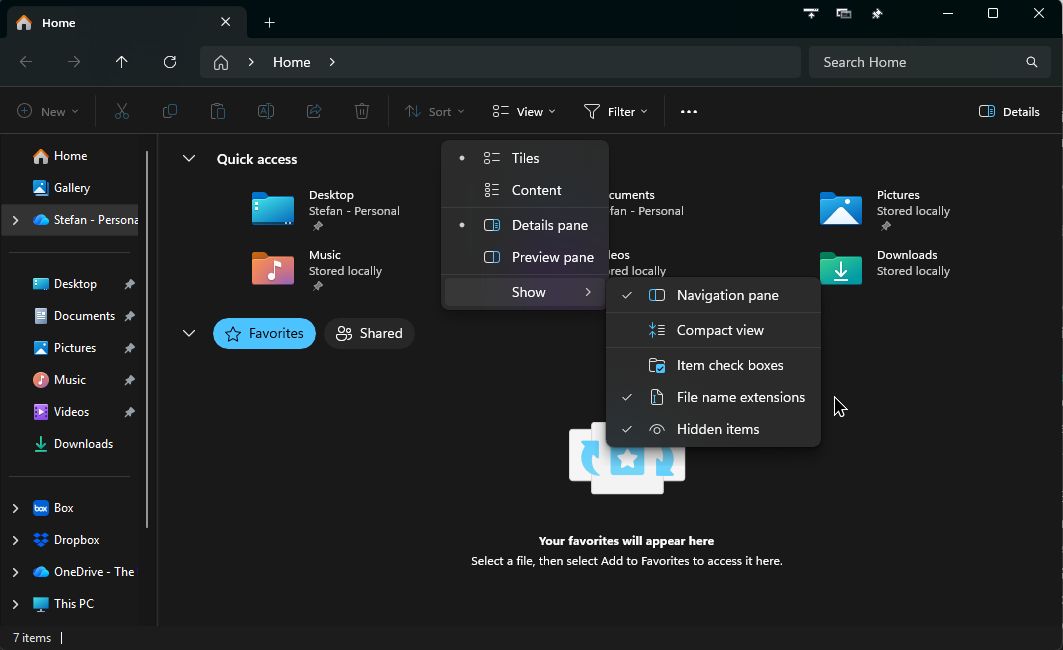
Running the wrong file entirely
Sometimes the problem is not your code, but the fact that you are not actually running the file you think you are running.
This happens more often than you might expect when:
- you have multiple copies of the same script in different folders
- you renamed a file but are still running the old filename
- you are editing one file in VS Code and running another from the terminal
If behavior does not match the code in front of you, verify:
- the exact filename you are running
- the exact folder that file lives in
- whether there are duplicate copies that might exist elsewhere
To that end, it might help to have a proper file search program on your system. On Windows, you can use “Search Everything” by voidtools, which is far superior to the built-in search options available in Windows. On Mac, you can use the built-in “Spotlight” search or an alternative like Raycast.
Multiple environments or stale .venv folders
Students sometimes end up with several environments nested across multiple folders. This results in the wrong one getting activated, or VS Code picking the wrong one automatically.
This can lead to frustrating, confusing, potentially irreproducible errors like:
- imports that worked yesterday but not today
- the editor shows red squiggly underlines for packages that you know you just installed
- you press the “Play” button in your editor and it gives you a
ModuleNotFoundError
As a general rule, each project should have a single, clear environment associated with it. If you have old or stray .venv folders in parent directories, they can confuse both you and your editor.
Follow these steps to diagnose the issue:
- Make sure you are in the correct project folder.
- Check which interpreter is being used. Your VS Code tells you which environment is active in the bottom right corner of the window. Click on it to make sure it is the one you believe should be used.
- Check whether there are extra
.venvfolders above, below, or beside the project folder. - Resync or recreate the environment if necessary. (See above for examples of syncing or recreating the environment.)
File paths that depend on where you run the program
Students often assume that relative paths are based on the location of the script file. However, in most cases, they are actually based on the current working directory from which the script was run.
That means a path like:
open("data/input.csv")may work in one terminal session and fail in another if you were to run the script from different folders.
If you see a FileNotFoundError when trying to open a file, ask yourself:
- What folder am I in? That is, what is the current working directory of my terminal? (This includes when I press the “Play” button in VS Code, which runs the script from the currently open project folder, whatever that is for you at the time.)
- What path is Python looking for relative to that folder?
- Does the file I’m looking for really exist there?
Being in the correct folder makes the difference between your code running successfully or not.
If you really want to make your scripts foolproof, you can use the pathlib library to handle running the script from the correct folder, regardless of where you are in the file system.
from pathlib import Path

parent_dir = Path(__file__).parent # gets the parent directory of the current script
# then you can use the parent directory to construct the paths to the other files you want to use
# for example:
data_file = parent_dir / "data" / "input.txt"
with open(data_file, "r") as f:
    data = f.read()
A quick troubleshooting checklist
Before asking for help, check the following:
- Am I in the correct folder in the terminal?
- Is VS Code opened to the correct project folder?
- Can I see hidden files like
.venv,.python-version, and.gitignore? - Which Python interpreter is my terminal using?
- Which Python interpreter is VS Code using?
- Is my environment activated, or am I using
uv runconsistently? - Do
pyproject.tomland.python-versionagree about the Python version? - Do I have all the packages I need installed to the correct environment?
- Is my file name formatted correctly (no spaces)?
- Does my file actually end in the correct file extension (e.g.,
.pyfor Python files)? - Am I definitely running the file I think I am running?
- Are there duplicate files or extra virtual environments confusing things?
If you can answer those questions clearly, you will be able to solve many problems on your own!
Conclusion
Many “technical” problems are really problems of what I like to call “code bureaucracy”: being in the wrong folder, using the wrong interpreter, using the wrong environment, etc. This is normal. It does not mean that you are bad at programming. It means that modern development environments have many moving parts, and learning to coordinate them is part of becoming a competent programmer.
The good news is that these issues become much easier once you develop the habit of checking your working directory, your interpreter, your environment, and your filenames before diving into more complicated solutions.
It’s not just me who’s received oneiric insight: famed mathematician Srinivasa Ramanujan claimed to have obtained some of his mathematical intuitions from his dreams.↩︎
Comments
Comments in Python start with a
#and continue to the end of the line. They’re ignored by the Python interpreter.Use comments to:
# Analysisor# Plotting)However, do take care to avoid over-commenting. Good code should be largely self-explanatory, with comments only providing necessary context. If you find yourself writing a lot of comments, consider if you can make your code clearer instead.